I'm currently exploring OpenClaw, an open-source project that's making waves in Silicon Valley. This fully automated bot helps you complete AI tasks with minimal manual intervention, which caught my attention immediately. I joined over 133K GitHub users who have starred this repository to try out this innovative tool.
Getting Started with OpenClaw
Step 1: Clone the Repository
First, clone the OpenClaw project from GitHub:
git clone https://github.com/openclaw/openclaw.git
Step 2: Choose Your Deployment Method
You have three options for running OpenClaw:
Option 1: Virtual Machine Run OpenClaw on a dedicated virtual machine for isolated deployment.
Option 2: Local Deployment Deploy directly on local hardware. Many users opt to purchase a Mac Mini as a dedicated server for this purpose, though this approach is not recommended for beginners.
Option 3: Docker (Recommended) Run OpenClaw in a Docker container. This is my preferred method as it provides environment isolation while utilizing a portion of your computer's resources.
If you're using Claude Code or CodeX, simply ask: "help me run this project on docker" and the AI will assist you in modifying the docker_setup.sh script. Then execute:
./docker-setup.sh
Step 3: Authentication and Pairing
Generate an authentication token by running:
docker compose run --rm openclaw-cli dashboard --no-open
This command will output a token. Use this token in your browser URL to authenticate when accessing the web interface.
Next, you need to pair your device by approving a pending request:
# Get the request_id for pairing
docker compose exec openclaw-gateway node dist/index.js devices list --token <your_token_here>

# Approve the request to complete device pairing
docker compose exec openclaw-gateway node dist/index.js devices approve <request_id> --token <your_token_here>
Step 4: Onboarding and Configuration
Complete the onboarding process by running:
docker compose run --rm -it openclaw-cli onboard
This will launch an interactive quickstart menu where you can configure the basics. You'll be presented with multiple LLM model options—I chose Claude Opus 4.5, but this is entirely up to your personal preference and use case.
What's Next
This guide covers the essential setup process for OpenClaw. In my next blog post, I'll share my hands-on experience and thoughts about using this tool in real-world scenarios.
Demo
Here's what the OpenClaw interface looks like once everything is set up:
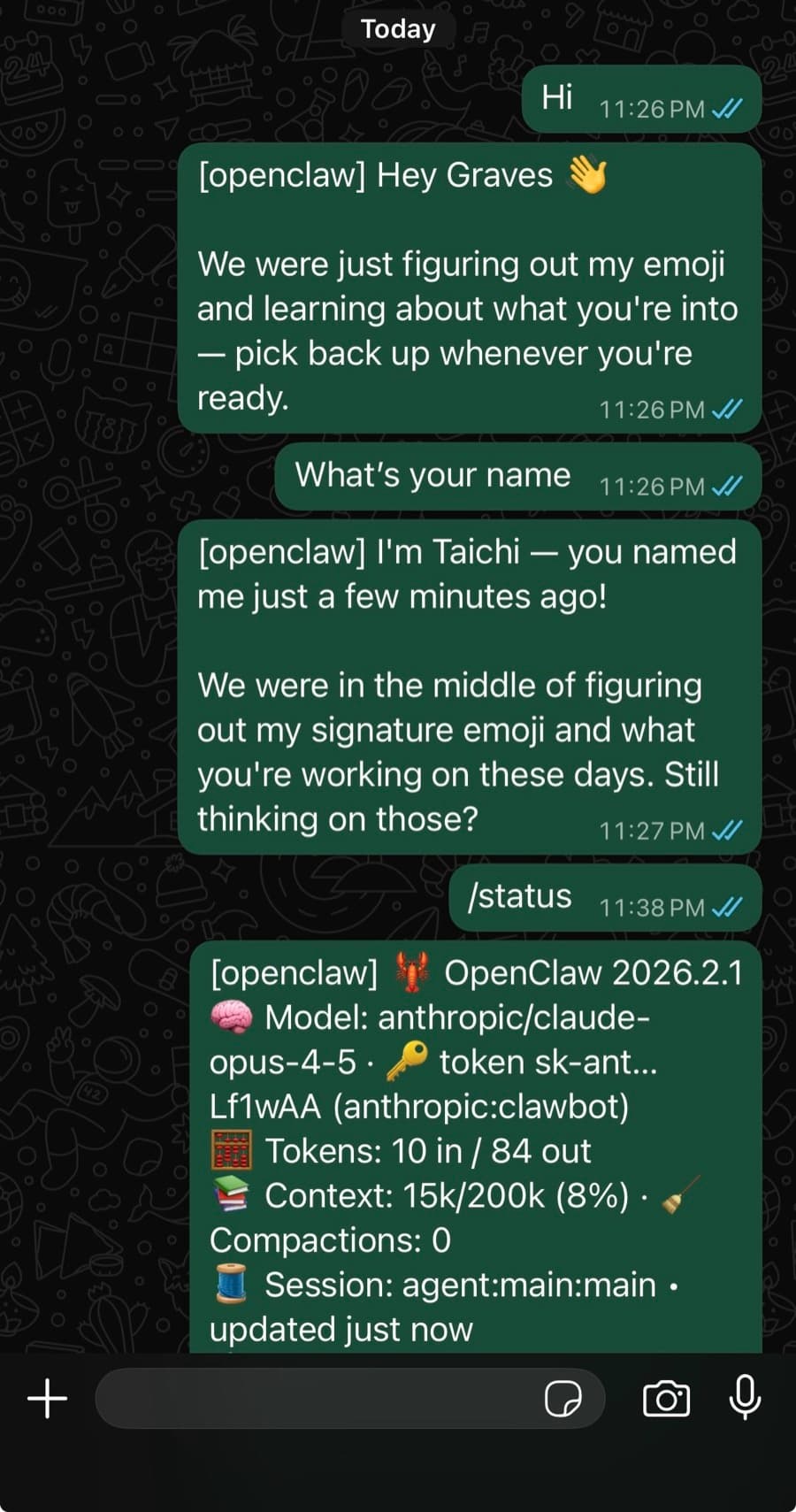 OpenClaw Demo